Unlimited Broadband
for your home
up to 1GBPS internet across devices
QR 299 Activate now Activate now
We’re Here to Help You Get Back Online!



Find Answers to your most asked
questions about Giga Home.
-

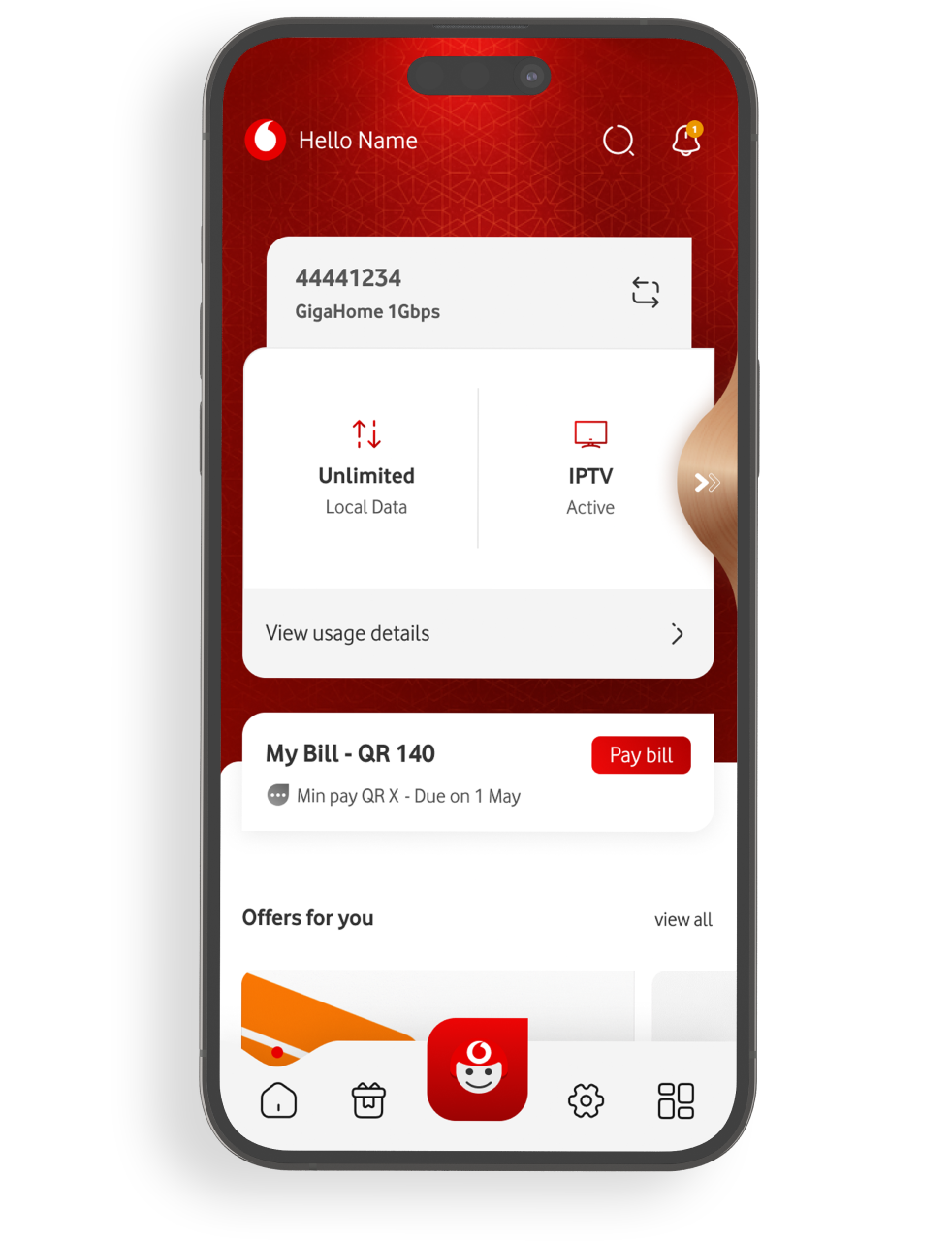
Change Wi Fi Settings
Default Wi Fi Settings
Your Vodafone router combines the 2.4 GHz and 5 GHz bands into a single network name (SSID). It automatically connects each device to the best band based on the device’s capabilities and signal quality.
Why Some Devices Fail to Connect
Some older or IoT devices (e.g., robot vacuums, older Fire TV Sticks, smart plugs) don’t support 5 GHz or may experience frequent disconnections when bands are combined.
Create a Dedicated 2.4 GHz Network
If an older device can’t connect reliably, create a separate 2.4 GHz network:- Open the Nokia WiFi app
- Go to Network Settings
- Tap Wi Fi Bands
- Enable “Separate 2.4 GHz Network”
-

Disable VPN
Disable VPN Before Running a Speed Test
Please turn off any VPN you may be using before performing a speed test or troubleshooting your home Wi-Fi.
Why This Matters
- A VPN can slow down your connection because your internet traffic is encrypted and routed through an external server. This extra step can increase delay (latency) and reduce overall speed.
- Some websites and apps may not work properly when a VPN is enabled, as certain services block or limit VPN traffic.
- You may experience buffering, lag, or lower video quality on platforms like YouTube, Netflix, or OSN+ when using a VPN.
- Some local content may not be available if your connection is routed through another country.
When to Call 111
- If you continue to experience slow speeds after disabling your VPN, you can proceed with further WiFi troubleshooting or contact support.
Speed Impact
- A VPN can slow down your connection because all your traffic is encrypted and routed through an external server.
- This added encryption increases latency and reduces overall speed.
Performance Issues
- Some websites and apps may not work correctly when a VPN is enabled, as many services block or restrict VPN traffic.
Browsing & Streaming Experience
- You may notice buffering, lag, or lower video quality on platforms like YouTube, Netflix, or OSN when connected via VPN.
- Local content may be limited because your VPN might route your connection through another country.
-

Set Up Parental Controls
Take control of your home internet and create a safer online environment for your family. With Parental Controls, you can easily manage when and how your children access the internet—helping them stay focused, safe, and balanced online.
Set up personalized profiles for each child, control screen time, and block inappropriate content—all in just a few taps using the Nokia WiFi app.
Set Up Parental Controls
- Open the Nokia WiFi app
- Tap "Parental Controls"
- Create a separate profile for each child
- Select the devices you want to include in each profile
Manage Rules
- Pause Internet – Instantly stop internet access for selected devices
- Schedule Time Limits – Set specific hours when the internet is restricted (perfect for bedtime or study time)
- Block Websites – Restrict access to certain websites or categories
- Customize Per Child – Apply age appropriate filters and controls for each profile
-

Improve Home Wi-Fi Experience
Take control of your home internet and create a safer online environment for your family. With Parental Controls, you can easily manage when and how your children access the internet—helping them stay focused, safe, and balanced online.
Set up personalized profiles for each child, control screen time, and block inappropriate content—all in just a few taps using the Nokia WiFi app.
WiFi Coverage Issue – How to Identify & Fix
- If you are experiencing slow speeds or frequent disconnections in specific rooms, but your WiFi works well near the router, you are most likely facing a WiFi coverage issue.
Common Causes
WiFi signals can be blocked or weakened by:- Thick walls or concrete
- Metal surfaces or appliances
- Multiple floors (especially in villas)
Recommended Solution
If you have identified a WiFi coverage issue, consider enhancing your connection by adding a Vodafone Mesh system. This helps extend WiFi coverage throughout your home, ensuring a stronger and more reliable connection in every room.Vodafone Mesh is designed to work seamlessly with your Vodafone router:
- • One system, one app, one support team
- • Optimized performance across all your devices
Avoid using non-Vodafone extenders, as they may cause IP conflicts and may not work seamlessly with your Vodafone router.
When to Call 111
- Request installation of Vodafone Mesh
- If WiFi is weak everywhere, even near the router
-

Wi Fi Signal Strength
Wi Fi Signal Strength
Your Wi Fi signal naturally becomes weaker the farther you move away from the router. This can reduce speed and cause drops in connection quality.
Other Factors That Affect Signal Strength
- Obstacles such as walls, doors, and large furniture can block or weaken the Wi Fi signal.
- Interference from nearby Wi Fi networks or electronic devices can disrupt performance.
- Router placement also matters—if the router is hidden inside a cabinet or placed low to the ground, the signal won’t spread effectively.
-

Troubleshooting Tips
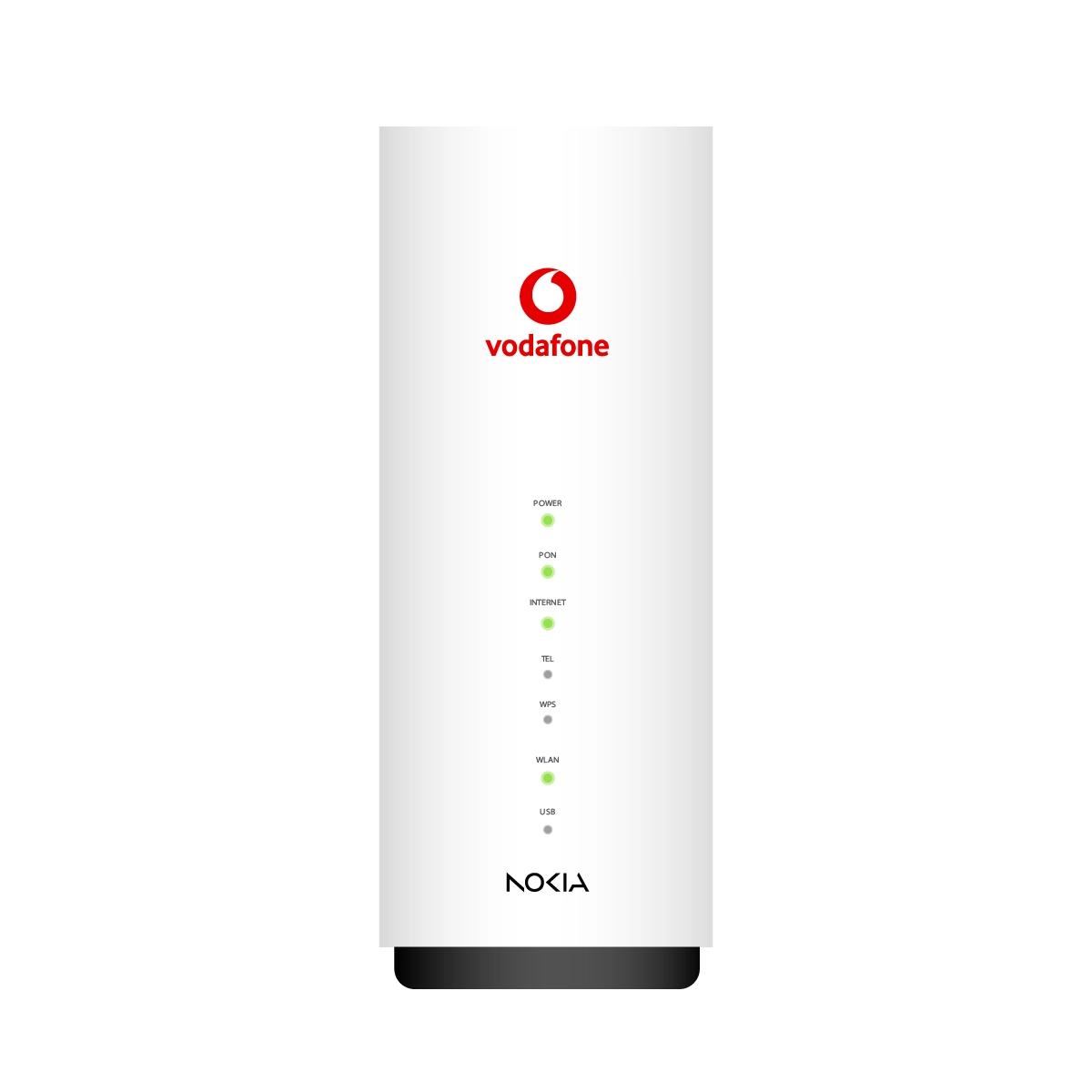
Use Vodafone Qatar–Approved Routers and Mesh Systems
Avoid using third party devices, as they may cause speed drops, interference, or unexpected disconnections.
Ensure You’re Connected to Your Vodafone Router
Run a speed test using https://speedtest.net while standing close to the router, or connect using a compatible Ethernet cable for the most accurate results.
Always select Vodafone Qatar as the test server by tapping “Change Server.”
Check All Cable Connections
Loose or partially connected cables can interrupt your internet signal. Make sure every cable is securely plugged in.
Keep Extenders and Mesh Units Powered On
If any mesh unit or extender is switched off, you may experience poor coverage or slow speeds in certain areas of your home.
Avoid Signal Blockers
Wi Fi performance can drop when the signal passes through:- Walls and closed doors
- Metal objects
- Hidden or enclosed router placements
Restart Your Router
Rebooting helps clear temporary memory issues and improves overall device performance.
Minimize Background Activity
Pause large downloads, cloud backups, or software updates on other devices when performing important tasks or running speed tests.
-

Change Your Wi Fi Name and Password
- Open the Nokia Wi Fi app
- Tap the Settings icon
- Under Wi Fi Networks, select your current network name
- Tap Edit in the top right corner
- Tap Continue
- Update your Wi Fi Name (SSID)
- Enter a new Wi Fi Password
-

Wi Fi 6 Devices
How to know if you have Wi-Fi 6?
- iPhone 11 or newer
- Most Android phones from 2020 onwards
If your phone is older, it may not support Wi-Fi 6.
With Vodafone Qatar’s latest Wi-Fi 6 routers, you enjoy stronger coverage, smoother performance, and speeds that keep up with your chosen fibre plan.


Learn how to...

There is a slight damage on my power cable

How much do I pay for new installation or moving houses?
While you experience our 5G broadband, we're preparing for fiber to be ready at your location within the next 3 months